💬 How to access TAP Chat
Open the TAP app
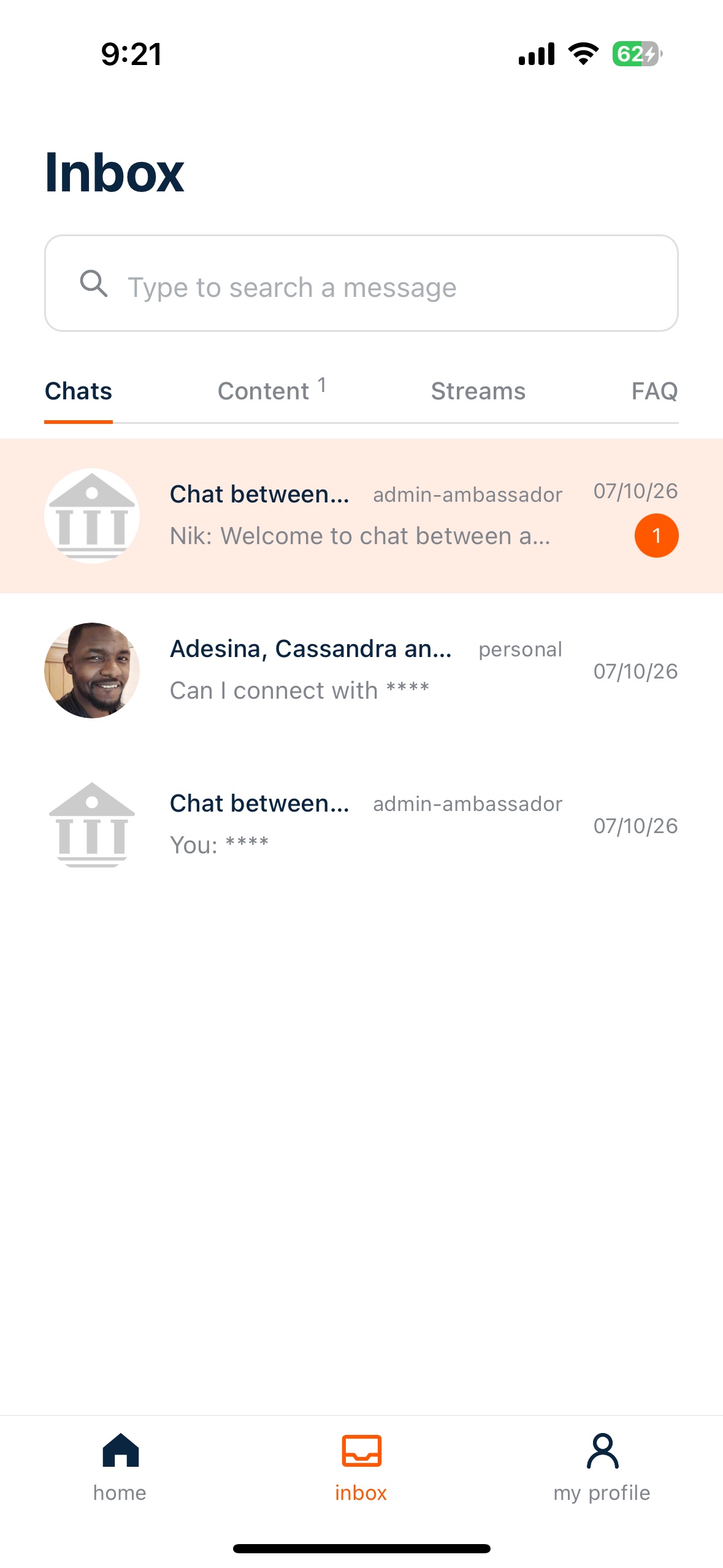
Tap the Inbox icon in the bottom menu to view your active chats (staying on the 'Chat' tab at the top)
You’ll see:
1:1 conversations with prospects
Group Chats you’ve been added to
🛠 Chat menu options
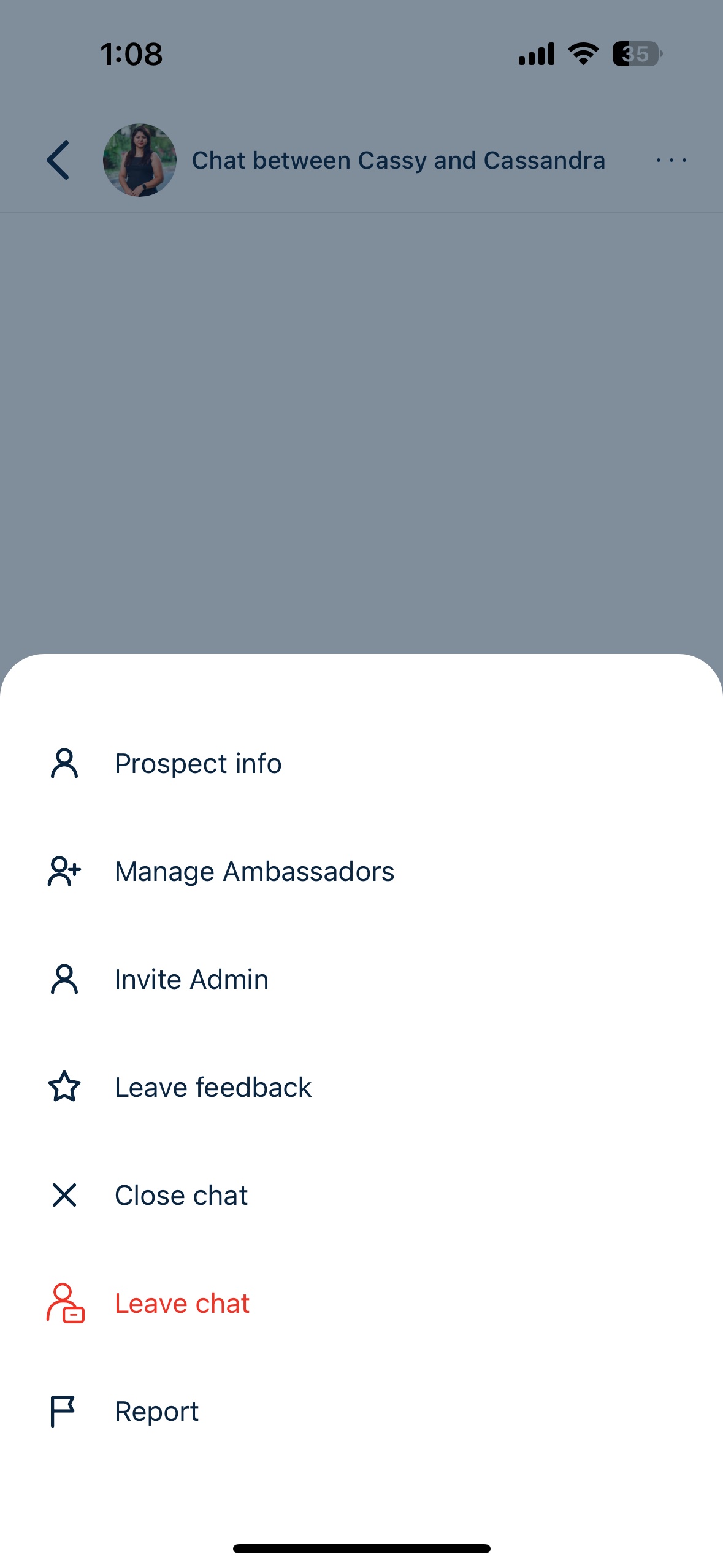
Tap the 3 dots (top right) inside any chat to access:
Prospect Information – View details about who you're chatting with
Invite Admin – Loop in a staff member if you need support
Add Ambassador – Bring in another ambassador who may be better suited to answer
Report a Conversation – Flag inappropriate behaviour or spam
Leave Conversation – Exit a chat after inviting others
Close Conversation – End a chat once it’s complete (can be reopened anytime)
🗣️ Leaving Feedback
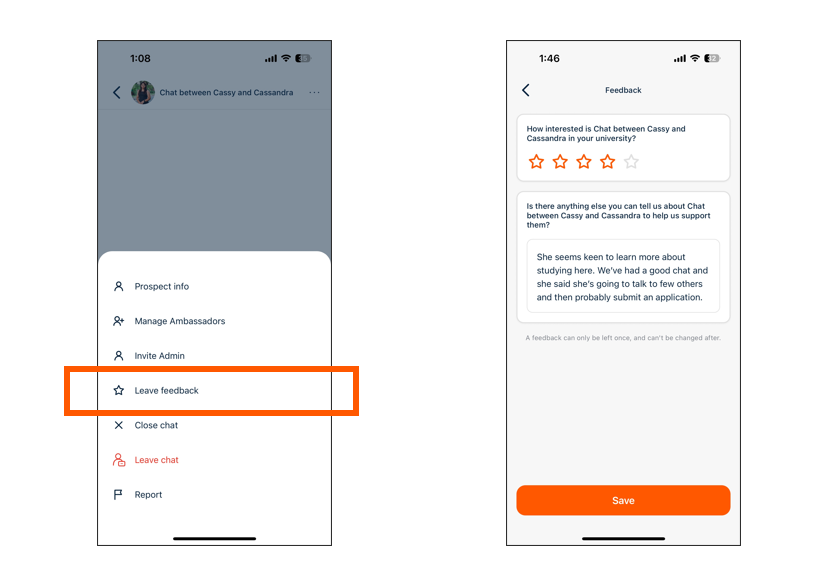
Tap the 3 dots icon in the top right to leave feedback on a prospect. This helps staff tailor follow-up communications.
You can share:
How likely the prospect is to apply
Notes about their interests, questions, or concerns
✅ Best Practices
Be responsive and friendly
Share personal experiences to build trust
Use open-ended questions to keep conversations flowing
Close chats when they’ve naturally ended
Leave feedback to support your institution’s outreach