Thank you for becoming a student ambassador! We’re excited to see you using TAP to connect with prospective students and share your experiences. This guide will help you set up your profile, create content, and feel confident chatting with prospects.
1. Your profile
Complete your profile in the TAP app (admins can’t activate you without a profile photo).
Include:
Hometown and country
Subject and year of study
Societies, interests, or hobbies
Write a short biography that’s personal, friendly, and inviting. Emojis are welcome!
Remember: prospects may connect with you because you share a subject, background, or interest.
.jpg)
2. Chat
Be yourself, be helpful, and keep the conversation flowing.
Aim to respond within 24 hours.
If you don’t know the answer, invite another ambassador or an admin into the chat.
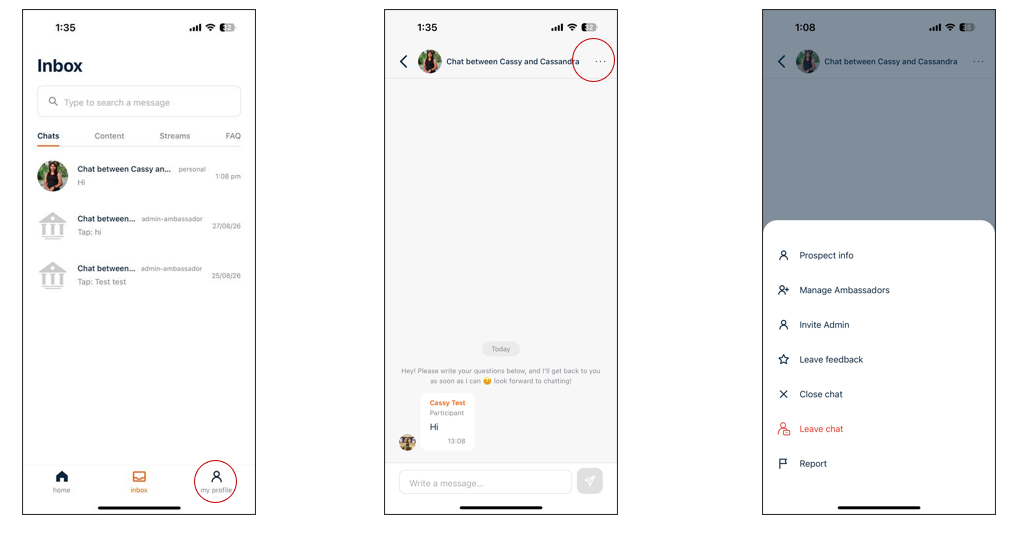
Flag conversations if anything makes you uncomfortable — admins are notified right away.
Close chats when finished; this triggers a short survey for the prospect.
You can invite other ambassadors/admins into a conversation for more perspectives.
Enable email notifications if you’d like to reply via desktop.
3. Content and FAQs
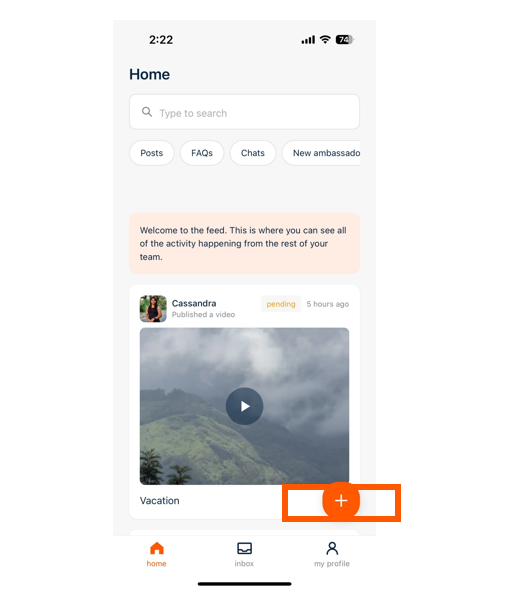
Capture new photos or videos in the app, or upload from your camera roll.
Add clear captions — they are searchable and explain your content to prospects.
A great first post: a 30–60 second video introducing yourself and why you enjoy your institution.
Think like a prospective student — create content that would have helped you when deciding where to study (e.g. campus life, accommodation, making friends, balancing study and social life).
Answer FAQs in detail (4–6 sentences), personalising responses with your own experiences.
Submit content anytime — don’t wait to be asked!
4. General tips
Be friendly – keep your tone warm and approachable.
Be honest – speak from your own experience. It’s OK if you don’t know everything.
Be responsive – aim to reply within a day.
5. Career benefits
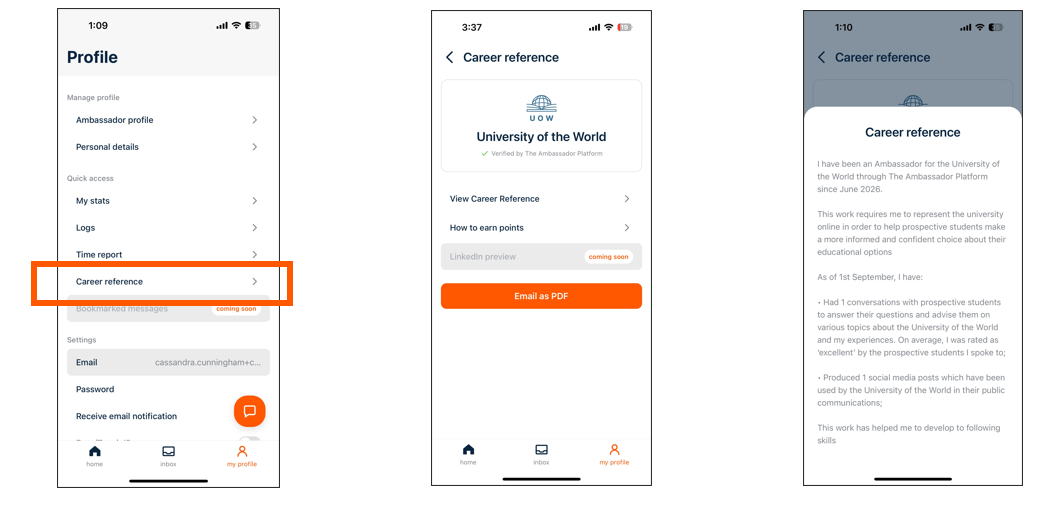
Earn career points for everything you create. Extra points when content is published.
All your work is logged in a downloadable career reference to use for CVs or LinkedIn.
6. Time limits
Your time is automatically tracked in the app.
If your institution has set limits (e.g. for visa compliance), you’ll be deactivated when you reach your monthly hours and automatically reactivated the next month.
.jpg)
👉 If you have questions, use the in-app support chat (bottom right question mark), or reach out to your admin.
Good luck — and have fun! 🎉