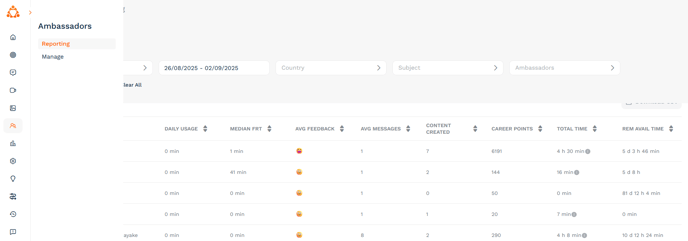
📊 What does the time report show?
- Total time spent (in minutes) across the app and desktop chat
- Breakdown by feature: Chat, Content, FAQ
-
Date filters to view specific periods
🎯 How are Career Points calculated?
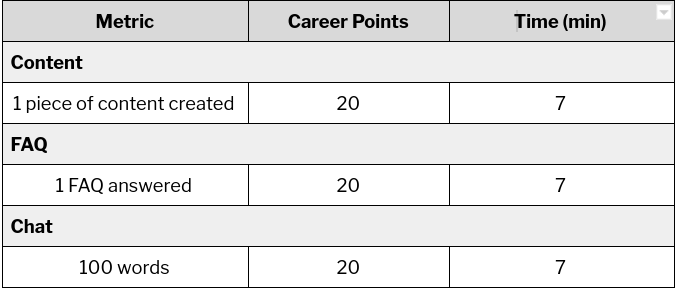
1 minute = 3 Career Points
Examples:
- 450-word chat = 90 Career Points = 30 minutes
- Deleted content = 7 minutes and 20 Career Points removed
Please see the table below for a breakdown of how Career Points are awarded:
⏳ How do I set time limits?
To restrict ambassador working hours (e.g. for visa compliance):
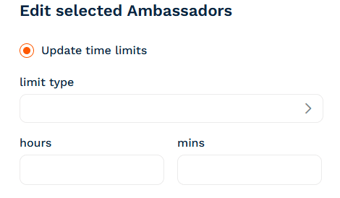
- Go to Ambassadors > Manage
- Click on the orange Action button > Update time limits
- Choose either a weekly or monthly limit and input the time
Note: Once set, time limits can’t be removed—only increased. Limits reset automatically each week/month.
What happens near or at the time limit?
- If an ambassador sends a message that exceeds their remaining time, the system allows it but rounds usage up to the limit.
- If the limit is later increased, the extra time is added automatically.
Example:
- Limit: 60 mins
- Usage: 54 mins
- Message: 11 mins → usage becomes 60 mins
- Limit increased to 120 mins → usage updates to 65 mins
🚫 What happens when the limit is reached?
Ambassadors are automatically deactivated from all features.
Let ambassadors know in advance if you plan to use time limits.
📩 What should admins do?
You’ll receive an email notification when an ambassador is deactivated.
To reactivate:
- Increase their time limit
- They’ll be automatically re-enabled for all features
If they had an active chat:
- Go to Messaging in Chat
- You can step in and send a message like:
“Hey! I’m {Your Name} from the institution – just a heads-up that {Ambassador Name} is temporarily unavailable for {X time}. Can I help, or invite another ambassador to assist you?”