🚨 What happens when a keyword is flagged?
- Our keywords can be found as documented in our safeguarding policy.
- Flagged keywords are automatically replaced with *** in the chat:
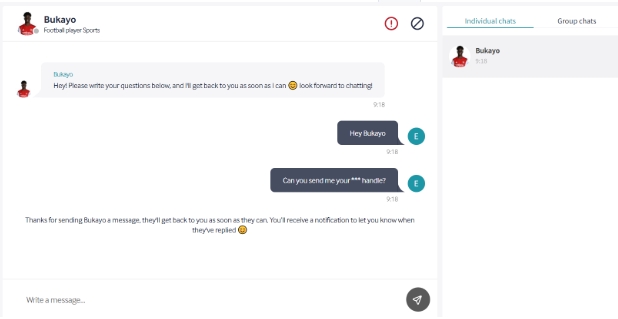
Prospect's view is shown above.
- You’ll receive an email notification when a keyword is detected.
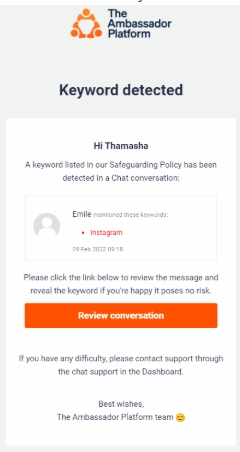
- In the Admin Dashboard, you can view the full message with the keyword hidden.
- To reveal the keyword to both users, click "Keyword is hidden from users" in the message view.
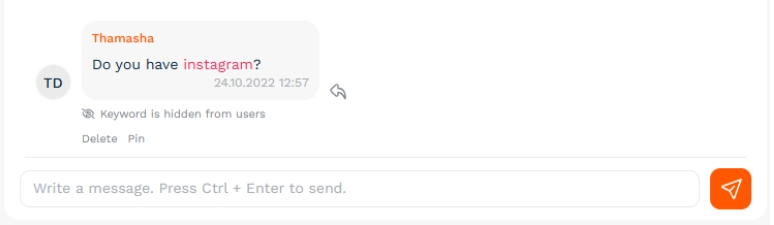
- You can click again to re-hide the keyword if needed.
Go to Settings > Safeguarding in your Admin Dashboard:
Open Safeguarding SettingsHere you can:
✅ Manage default keywords
- All default keywords are blocked by default.
- Uncheck any keywords you want to allow in conversations.
- Add your own keywords (in any language) to be blocked in addition to the default list.
- Add institution-approved contact details (e.g. Admissions email or phone number) to allow ambassadors to share them safely.
Yes. You can disable the *** masking entirely to allow flagged keywords to appear in conversations. You’ll still receive email alerts when keywords are detected.
🎯 Why use this feature?- Helps protect users and maintain safe, appropriate conversations.
- Gives admins full control over what’s visible in chats.
- Allows flexibility to support your institution’s safeguarding policies.