🎯 Why use Promotion?
- Drive traffic to your Feed and to your ambassadors, ultimately increasing the number of prospects you engage
- Tailor the Feed experience for different audiences
- Highlight specific ambassadors or content
- Track which campaigns drive the most traffic and engagement
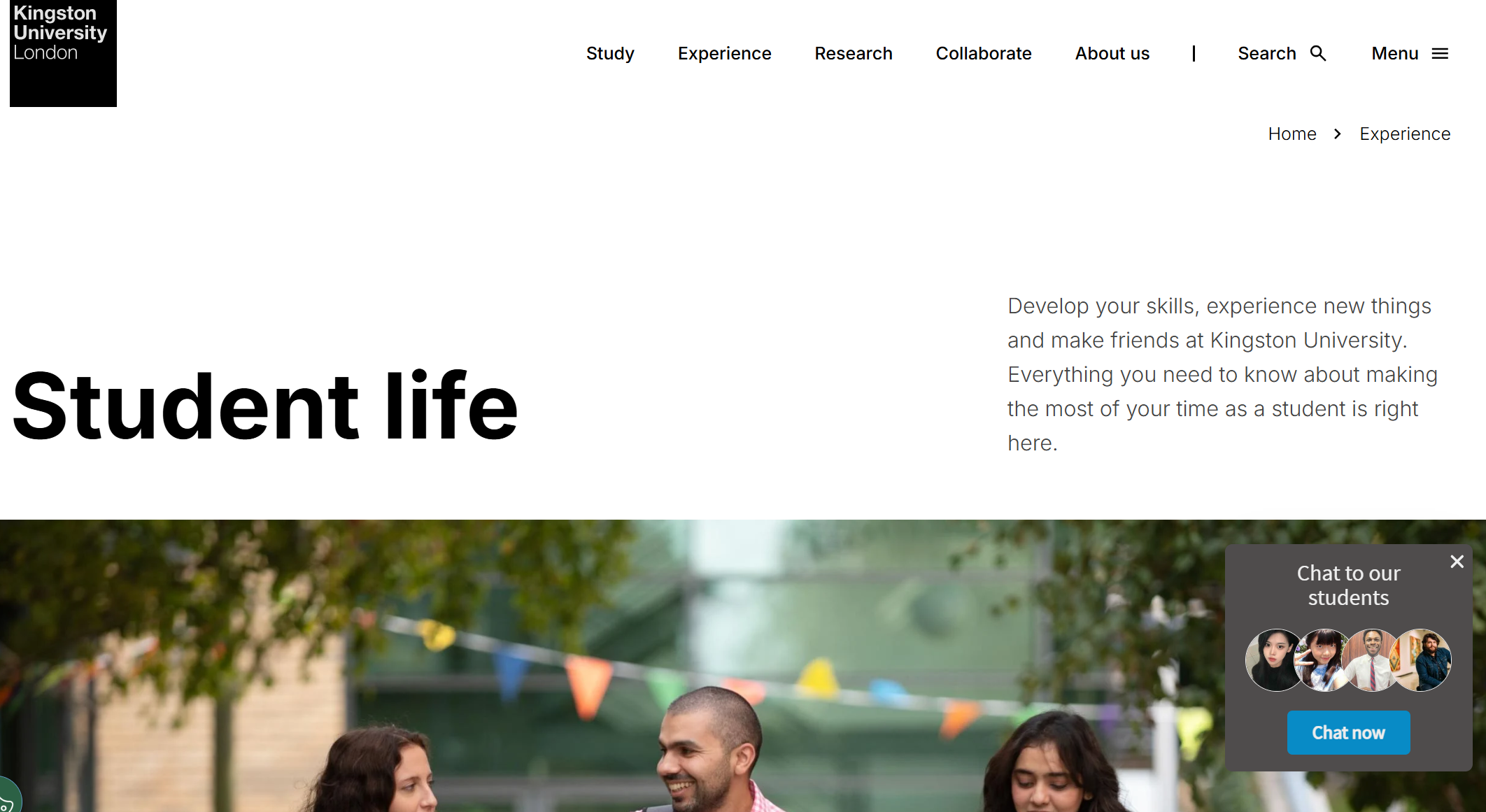
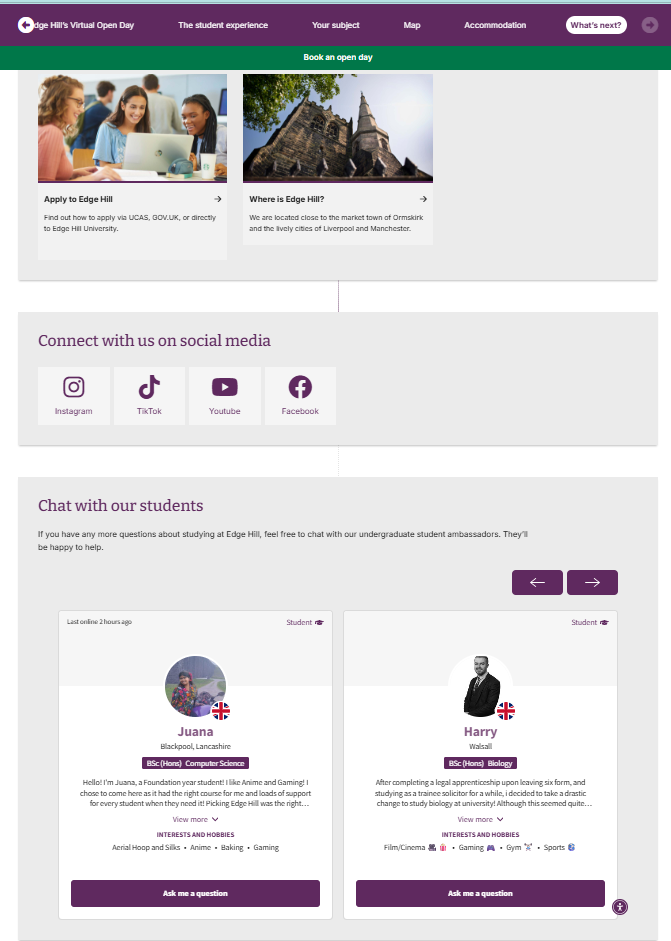
- Promote your Feed via pop cards, carousels, or tracked links
⚙️ How to set up a Promotion
- Choose your promotion type
- Options include:
- Pop card
- Carousel
Tracked link (with optional QR code)
2. Apply search filters [OPTIONAL]
- Use keywords (e.g. International, Business) to pre-filter the Feed if you would like the page to be filtered against a specific topic. Otherwise leave out the filters. If you're using Tag Manager, tagged profiles, content, and FAQs will also be included.
3. Customise your messaging
- Pop card title (default: “Chat to our Community”) — up to 40 characters
- Page Title & Description — adjust the call to action for prospects landing via this promotion
- Medium is auto-filled based on promotion type
- Add your own Campaign and Source values
- Existing UTM parameters won’t be overwritten by TAP UTM
4. Add UTM tracking [OPTIONAL but recommended]
5. Preview and embed
- Review your setup
- Copy the embed code
- Add it to your website or campaign