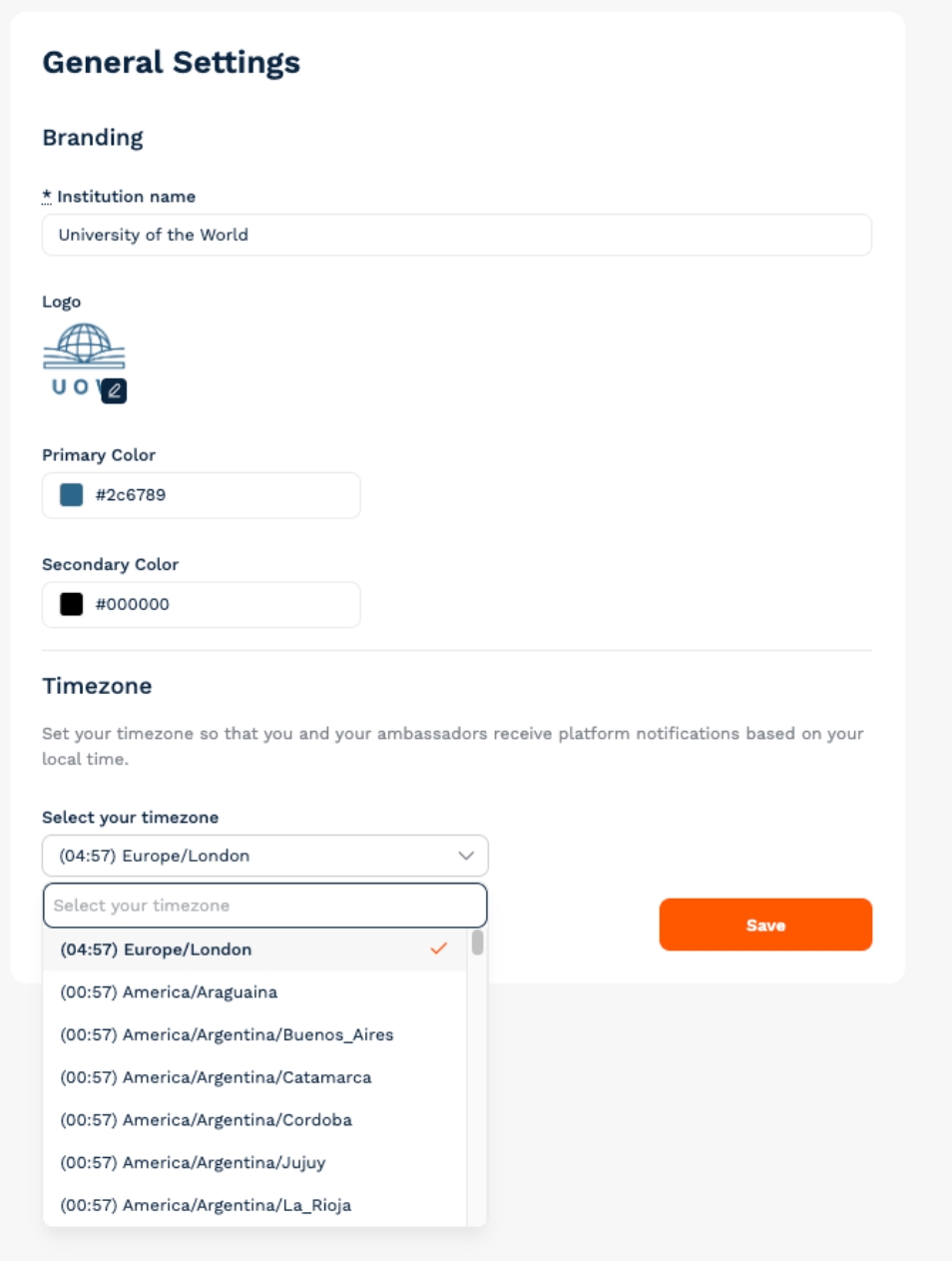
Steps to set your time zone
- Log in to your TAP admin dashboard.
- Go to Settings > General Settings.
- Find the Time zone section.
- Select your local time zone from the dropdown menu.
- Click Save to confirm your changes.
Tips for success
- Double-check the timezone, especially if your university has multiple campuses across regions.
- Updating your timezone does not affect existing data, only how it’s displayed going forward.
- Ensures conversation timestamps are accurate.
- Helps you schedule ambassador availability correctly.
- Keeps reporting aligned with your local business hours.
- A helpful example: the Content Schedule is set by default to be sent at midday UK time. Changing your timezone will ensure your ambassadors receive these notifications at midday in their local time instead.