Steps to review and activate an ambassador profile
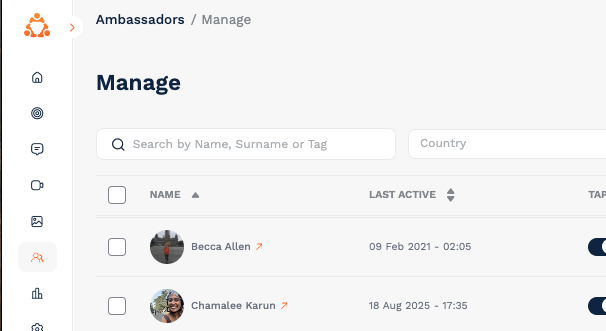
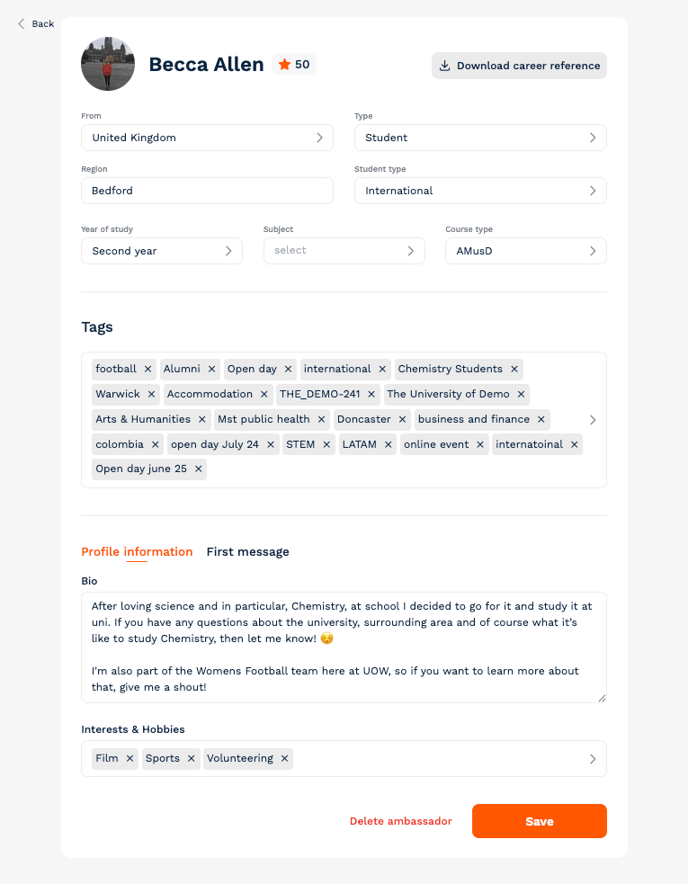
- Profile photo – clear and professional.
- Bio – accurate and appropriate.
- Fields – up to date and are accurate.
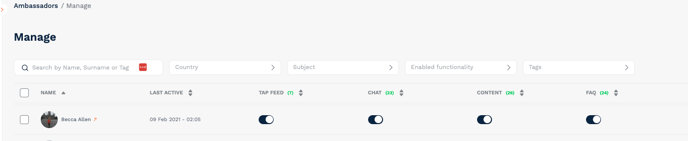
What are tags?
You can also add tags to an ambassador’s profile. Tags help group profiles and content together with relevant terms.
Examples:
- Philosophy Students
- Commuter Students
- UG Offer Holder Campaign 2020
Tags are hidden, but when a prospective student searches on your TAP Feed (e.g. “Commuter Students”), profiles with that tag will appear.
You can also use tags to:
- Create filtered TAP Feed links for campaigns and promotions.
- Add dropdown filters to make browsing easier for students.
👉 Learn more about tagging in our Tags and Groups guide.
Tips for success
- Remind ambassadors to upload a professional photo and keep their bio student-friendly.
- You can edit ambassador details directly in the dashboard if small changes are needed.
- Deactivate profiles anytime if an ambassador is no longer active or suitable.
Why reviewing matters
- Ensures your TAP Feed reflects your university’s brand and professionalism.
- Helps prospective students feel confident connecting with ambassadors.
- Gives you control over which ambassadors are publicly visible.